
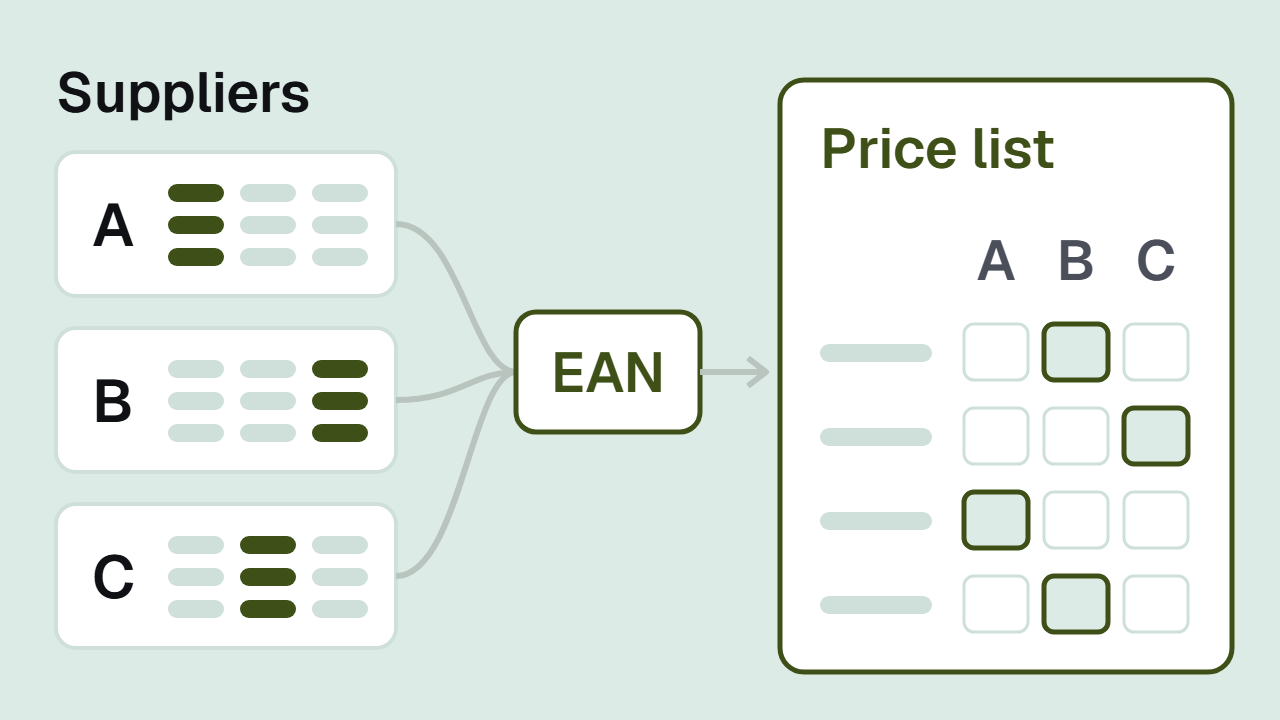
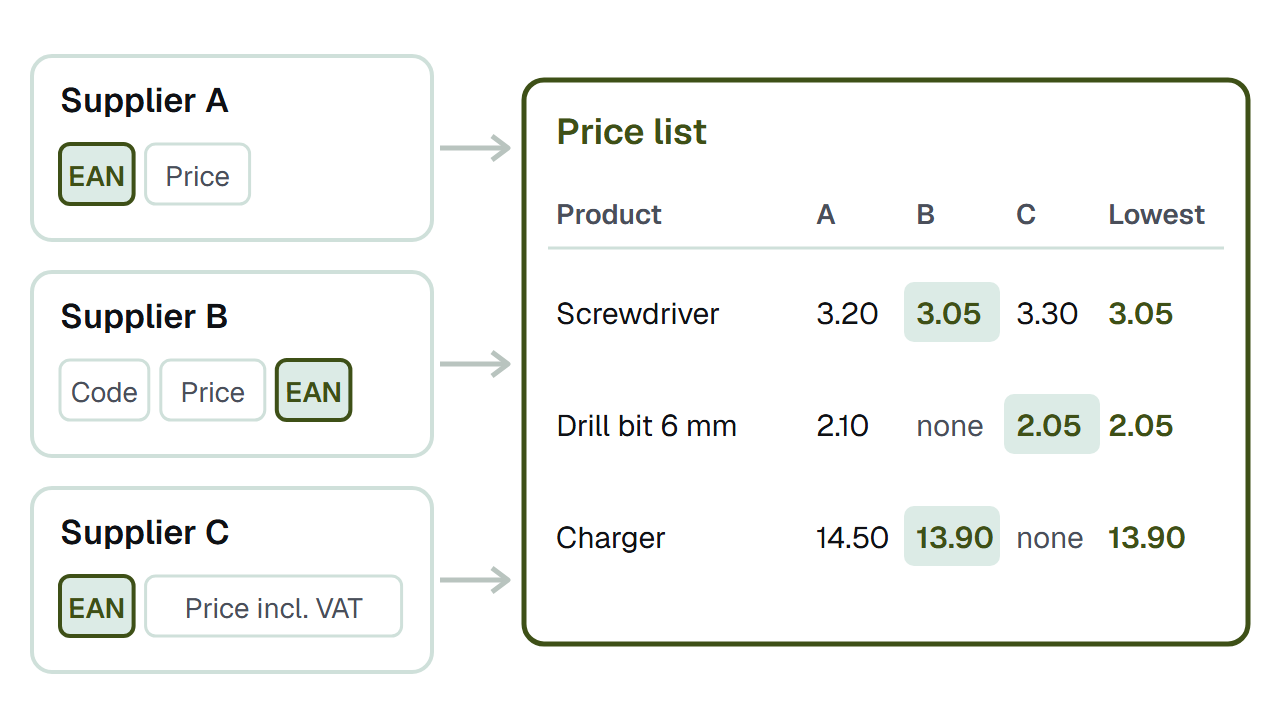
Every supplier sends its price list in its own format. One has the EAN code in the first column, another in the last, a third quotes prices with VAT. Someone copies them into one table every week, and if a supplier changed a price after the last copy, the customer gets yesterday's price.
This article covers how to merge several suppliers' price lists into one price list by EAN code with XLOOKUP, what to clean up before the formula, how Power Query helps when price lists arrive every week, and a free sample Excel file with three suppliers.
- The key is the EAN code, stored as text, not as a number. Otherwise leading zeros disappear and the codes do not match.
- XLOOKUP finds each supplier's price by EAN whichever column it is in, and can show "none" for a missing code instead of an error.
- VLOOKUP is risky for price lists: by default it looks for an approximate match and can return the price of the next product.
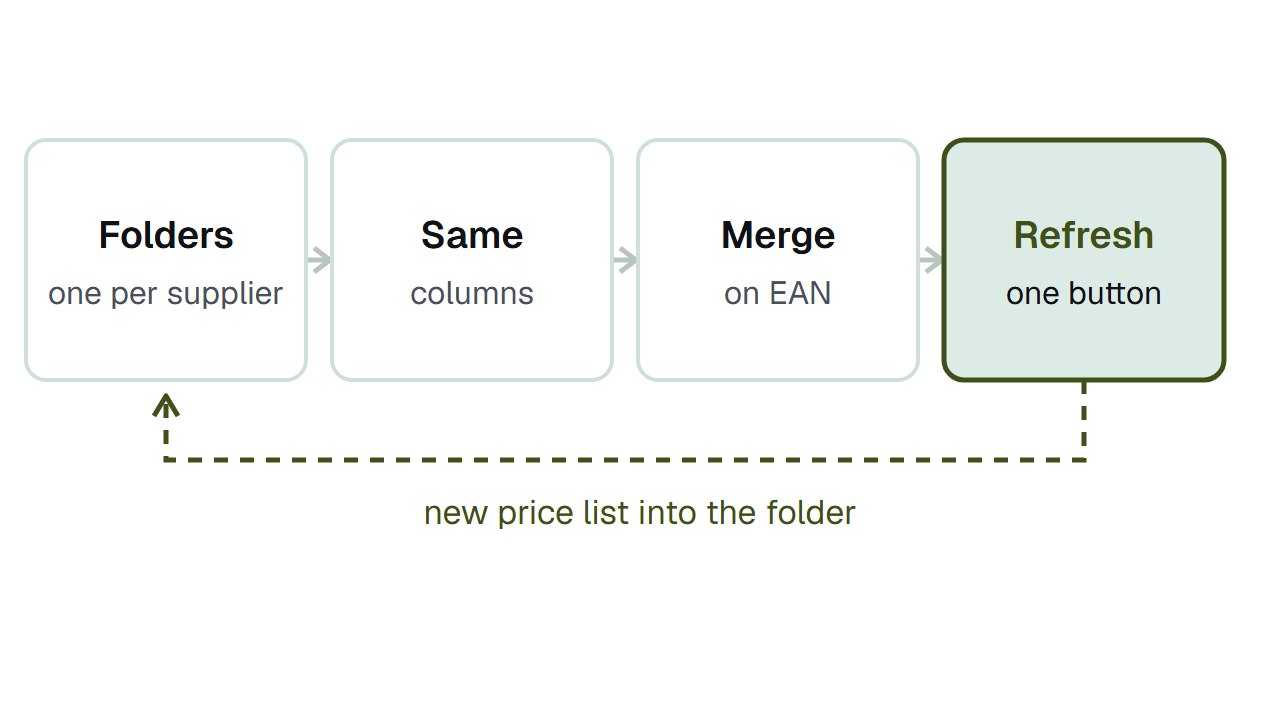
- Power Query loads each supplier's price list from its own folder, and when the next one arrives, a refresh is enough.
- XLOOKUP is in Microsoft 365, Excel 2021 and 2024. Excel 2016 and 2019 do not have it, but INDEX and MATCH work there.
Why VLOOKUP does not suit price lists
VLOOKUP is the best-known lookup function, and for price lists it has three weak spots that Microsoft itself names:
- It only searches the first column. If a supplier puts the EAN after the name or the price, you have to rearrange the columns every time a new price list arrives.
- It takes the column as a number. The formula asks for "the third column". If the supplier adds a column before the price, the formula may quietly start showing a different figure, such as the price with VAT or the stock level.
- By default it looks for an approximate match. If you leave out the last argument, VLOOKUP can return the price from a neighbouring row for a code it cannot find. The mistake looks like a correct price, which makes it easy to send to a customer.
XLOOKUP: one formula per supplier
XLOOKUP searches one column and returns a value from another, so it does not matter where a supplier keeps the EAN and where the price. On the price list sheet each supplier gets one column with a formula like this:
=XLOOKUP(A6,'Supplier A'!$A$2:$A$500,'Supplier A'!$C$2:$C$500,"none")| Argument | What it means on a price list |
|---|---|
| What to look up | the EAN code on your price list (A6) |
| Where to look | the supplier's EAN column |
| What to return | the supplier's price column |
| If not found | your own text, such as "none", instead of the #N/A error |
By default XLOOKUP looks for an exact match only, so a wrong price from the next row cannot appear. If Excel rejects the formula, use semicolons instead of commas: the separator usually depends on the computer's regional settings.
Once each supplier has its own column, MIN finds the lowest price, and the customer price is the lowest price with your markup added. The sample file already has all of this wired up.
What to clean up before the formula
The formula only finds what matches character for character. When "XLOOKUP does not work", the cause is often in the data, not the formula:
| Problem | What it looks like | What to do |
|---|---|---|
| EAN stored as a number | Leading zeros gone: 12345678905 instead of 13 digits | Format the column as text, or restore the zeros with a TEXT formula, as on the sample's "Supplier C" sheet |
| EAN shown as 4.75E+12 | Excel shows a long number in scientific notation | Format the column as text before pasting |
| Text against number | On one sheet the EAN is text, on the other a number, and they do not match | Use the same format on both sheets, preferably text |
| Spaces | The code looks the same but has a space at the end | TRIM removes ordinary spaces but not the non-breaking space. Remove that with SUBSTITUTE, replacing CHAR(160) with empty text |
| Price with VAT | One supplier quotes prices with VAT, the others without | Convert all prices to excluding VAT before comparing |
| Unit | One price list is per piece, another per pack | Convert to one unit: the pack price divided by the number of pieces |
| Decimal comma | In a foreign CSV the price is 3.20 and Excel reads it as text or a date | In Power Query change the column type using a locale (Change Type > Using Locale), picking a language that uses a decimal point |
An EAN-13 has 13 digits and Excel keeps 15 digits in a number, so the code itself is not damaged. The trouble comes from the lost leading zeros and from text and numbers not matching.
The sample has a "Read me" sheet, three supplier sheets and two price list sheets:
- Supplier A, B, C: each in its own format. Supplier B has the EAN in the last column, supplier C quotes prices with VAT and stores the EAN as a number, so code 0012345678905 has lost its leading zeros.
- Price list: XLOOKUP for each supplier, the lowest price, the cheapest supplier and the customer price with your markup.
- Price list (INDEX MATCH): the same without XLOOKUP, if your Excel is 2019 or older.
The yellow cells are the ones you change: EAN codes, product names, the markup and the VAT rate. The data in the sample is made up.
Power Query: when price lists arrive every week
With formulas, you paste each new price list into the right sheet by hand. Power Query repeats that step for you. It is built into Excel for Windows since 2016, including the versions without XLOOKUP.
- Make a folder for each supplier and save its price list there. One supplier's files usually share a format, different suppliers' files rarely do.
- For each folder: Data > Get Data > From File > From Folder, choose the folder and then Transform Data.
- In the Power Query Editor, rename each supplier's columns the same way: EAN, name, price, stock. Set the EAN column to the Text type straight away, because Power Query guesses the type from the first 200 rows and may turn the EAN into a number.
- Stack the supplier tables one under another (Append Queries), then merge them with your product list on EAN (Merge Queries).
- Close & Load.
When a supplier sends a new price list, save it in that supplier's folder in place of the old one and refresh the queries (Data > Refresh All). Everything recalculates and the formulas stay untouched.
On a Mac, Power Query is in Microsoft 365 (Excel 2016 and 2019 for Mac do not have it), and the Get Data menu has no "From Folder".
When merging, check that no EAN code repeats in a supplier's list. If one product appears twice in a price list, it will usually appear twice on your price list too.
Where Excel stops
With three suppliers and one price list a week, Excel with XLOOKUP or Power Query is entirely enough. The trouble starts when there are five suppliers or more, price lists arrive several times a day, some come as CSV or XML from the supplier's system, and the salesperson also needs to see stock and delivery time.
Then refreshing becomes a job someone has to remember to do, and jobs like that survive least often, as we wrote in 206 automations, 43 still running. For one B2B electronics broker, six distributors' price lists update three times a day, and the catalogue holds about 12,400 supplier prices. How we set this up for your company is described on the page Supplier price lists.
Frequently asked questions
Does Latvian Excel have XLOOKUP? Yes, under the same name: XLOOKUP. It is in Microsoft 365, Excel 2021 and 2024, and in Excel for the web. Excel 2016 and 2019 do not have it: the cell shows #NAME?, and you need INDEX and MATCH. In Latvian Excel help, INDEX and MATCH are called INDEKSS and ATBILSTĪBA. If Excel rejects one name, type the other.
Why does XLOOKUP not find a code that is definitely in the table? Most often the EAN is text on one sheet and a number on the other, or the code has a space at the end. Check both columns and give them the same format.
XLOOKUP or Power Query? XLOOKUP if you have a few suppliers and paste the price lists yourself. Power Query if price lists arrive regularly and you want to load them from folders with one button.
Can I do this in Google Sheets? Yes, Google Sheets has an XLOOKUP function with the same arguments. Google Sheets has no Power Query.
How do I compare prices if one supplier quotes with VAT? Convert that price to excluding VAT before comparing. In the sample, column G on the "Supplier C" sheet does this.